ดังนั้นคุณจึงมีแอปพลิเคชันทั้งหมดเหล่านี้ (แอปพลิเคชันระดับองค์กรและการลงทะเบียนแอป) ใน Microsoft Entra แต่คุณต้องการเพิกถอนการอนุญาตจากแอปพลิเคชัน เป็นไปได้ที่จะลบสิทธิ์ความยินยอมของผู้ดูแลระบบออกจากแอปพลิเคชันในศูนย์การจัดการ Microsoft Entra แต่ไม่ใช่สิทธิ์ความยินยอมของผู้ใช้ ในบทความนี้ คุณจะได้เรียนรู้วิธีลบสิทธิ์การยินยอมของผู้ดูแลระบบและผู้ใช้ออกจากแอปพลิเคชัน Microsoft Entra
มาดูความยินยอมของผู้ดูแลระบบและการอนุญาตความยินยอมของผู้ใช้สำหรับแอปพลิเคชันใน Microsoft Entra:
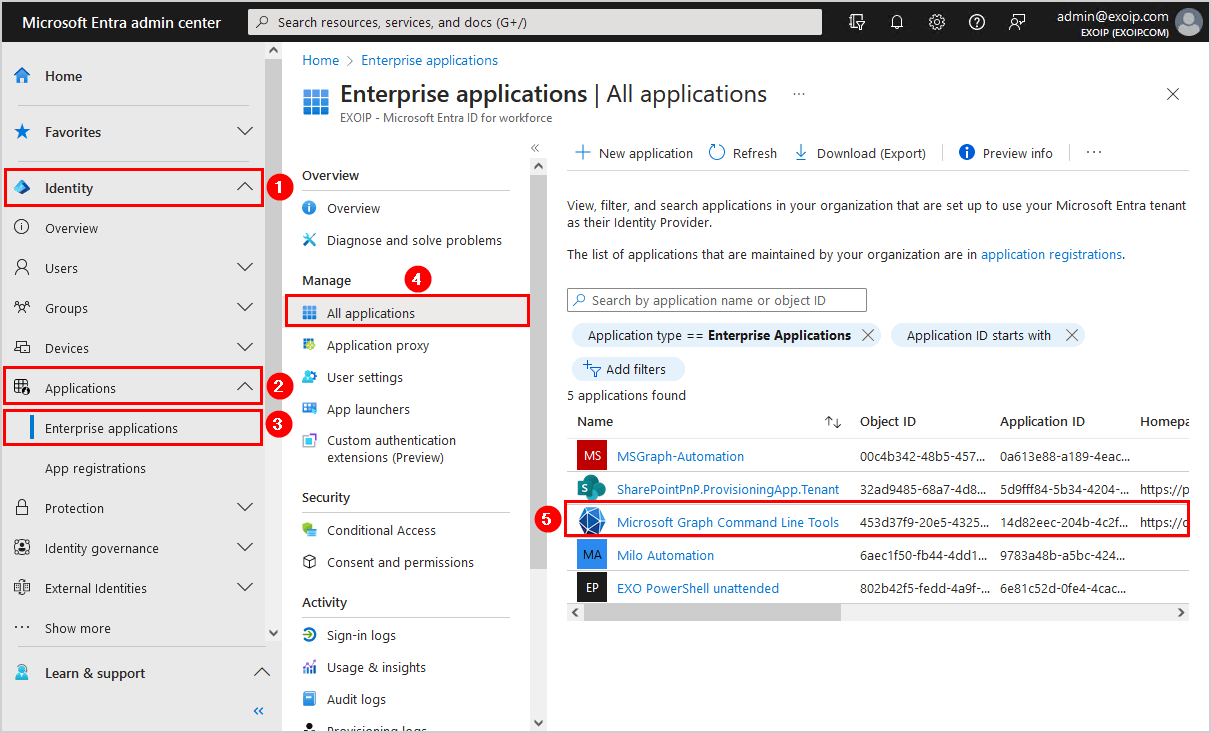
- ลงชื่อเข้าใช้ศูนย์การจัดการ Microsoft Entra
- ขยายข้อมูลประจำตัว > แอปพลิเคชัน
- เลือกแอปพลิเคชันระดับองค์กร (หรือการลงทะเบียนแอป)
- คลิกที่แอปพลิเคชันทั้งหมด
- เลือกแอปพลิเคชัน
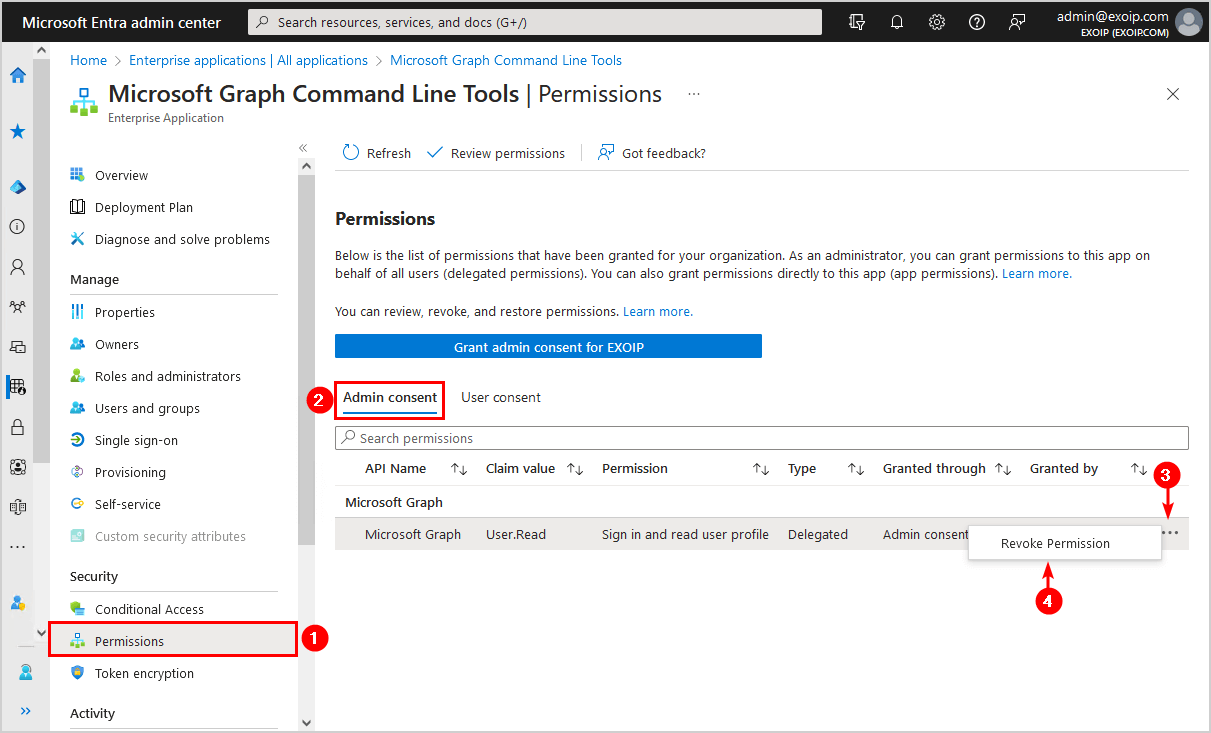
- คลิกที่สิทธิ์
- เลือกความยินยอมของผู้ดูแลระบบ
- เลือกเพิกถอนการอนุญาต
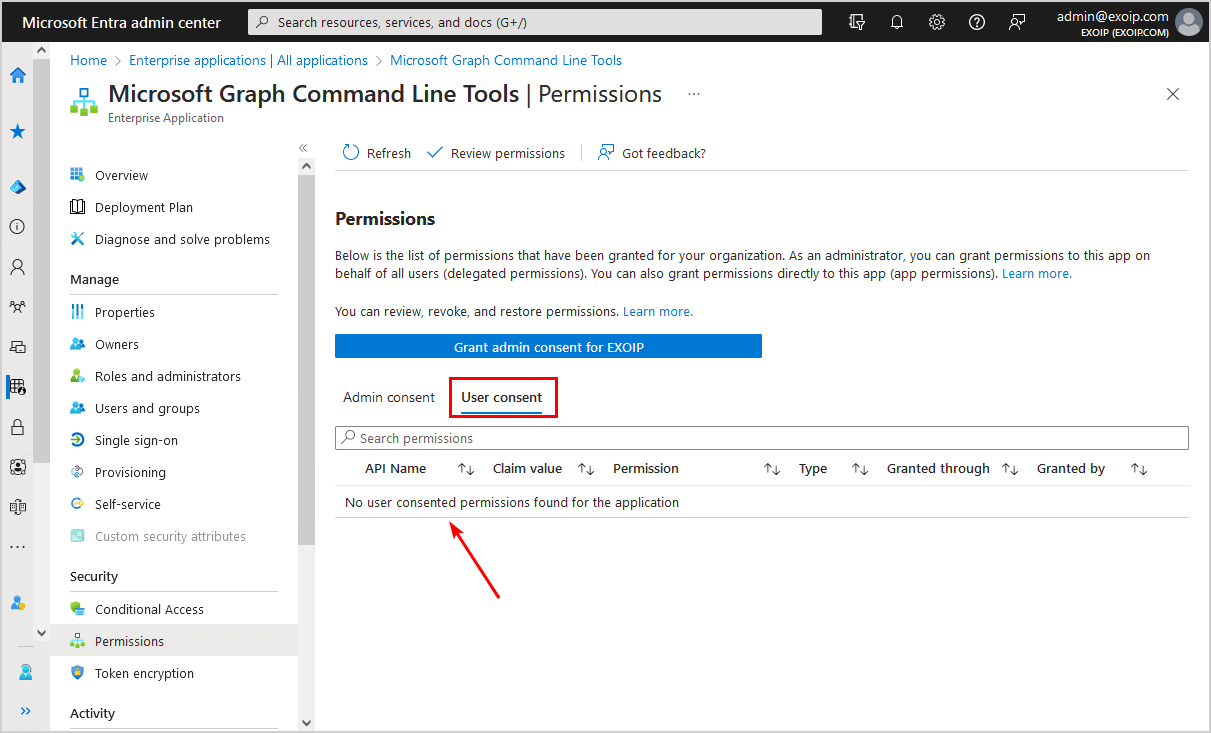
- คลิกที่ความยินยอมของผู้ใช้แท็บ
- ไม่มีทางเลือกที่จะเพิกถอนการอนุญาต
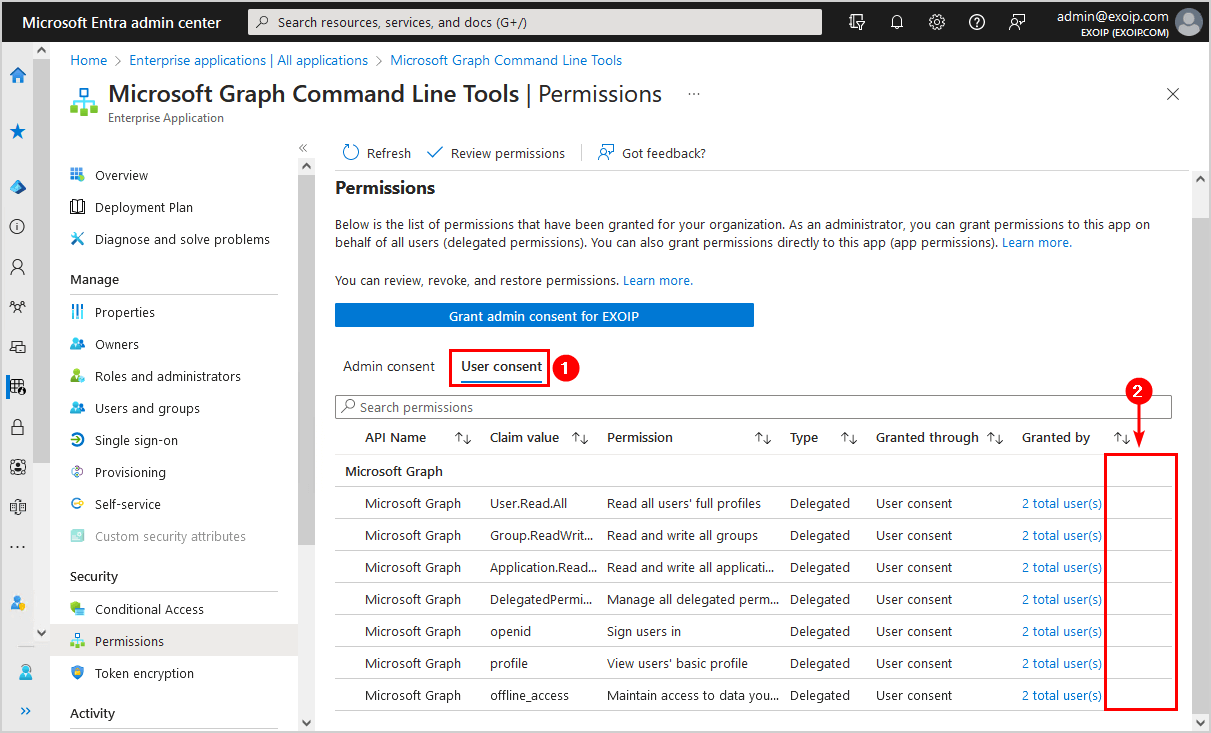
ดังนั้นเราจึงสามารถเพิกถอนการอนุญาตจากแอปพลิเคชันได้เมื่อได้รับความยินยอมจากผู้ดูแลระบบ น่าเสียดายที่เป็นไปไม่ได้ที่จะเพิกถอนสิทธิ์เมื่อได้รับความยินยอมจากผู้ใช้ในศูนย์การจัดการ Microsoft Entra
ในขั้นตอนถัดไป เราจะดำเนินการตามขั้นตอนและแสดงวิธีการลบสิทธิ์ผู้ดูแลระบบและความยินยอมของผู้ใช้ออกจากแอปพลิเคชันด้วย PowerShell
ติดตั้งโมดูล Microsoft Graph PowerShell
เริ่ม Windows PowerShell ในฐานะผู้ดูแลระบบและติดตั้ง Microsoft Graph PowerShell
Install-Module Microsoft.Graph -Forceสำคัญ:อัปเดตเป็นโมดูล Microsoft Graph PowerShell เวอร์ชันล่าสุดเสมอก่อนที่คุณจะเรียกใช้ cmdlet หรือสคริปต์เพื่อป้องกันข้อผิดพลาดและผลลัพธ์ที่ไม่ถูกต้อง
ลบสิทธิ์ความยินยอมทั้งผู้ใช้และผู้ดูแลระบบออกจากแอปพลิเคชัน
คุณสามารถใช้สคริปต์ด้านล่างเพื่อลบทั้งสองอย่างได้สิทธิ์ความยินยอมของผู้ใช้และผู้ดูแลระบบจากแอปพลิเคชัน
ค้นหาแอปพลิเคชันรหัสวัตถุในแท็บภาพรวม ต่อไปก็วางมันลงไปบรรทัดที่ 4.
Connect-MgGraph -Scopes "User.ReadWrite.All", "Application.ReadWrite.All", "DelegatedPermissionGrant.ReadWrite.All"

# Get Service Principal using objectId
$sp = Get-MgServicePrincipal -ServicePrincipalId 453d37f9-20e5-4325-bc00-67d1581a0232

# Get all delegated permissions for the service principal
$spOAuth2PermissionsGrants = Get-MgServicePrincipalOauth2PermissionGrant -ServicePrincipalId $sp.Id -All

# Remove all delegated permissions
$spOAuth2PermissionsGrants | ForEach-Object {
    Remove-MgOauth2PermissionGrant -OAuth2PermissionGrantId $_.Id
}
ลบสิทธิ์ความยินยอมของผู้ดูแลระบบออกจากแอปพลิเคชัน
ถอดออกเท่านั้นสิทธิ์ความยินยอมของผู้ดูแลระบบจากแอปพลิเคชัน
ค้นหาแอปพลิเคชันรหัสวัตถุในแท็บภาพรวม ต่อไปก็วางมันลงไปบรรทัดที่ 4.
Connect-MgGraph -Scopes "User.ReadWrite.All", "Application.ReadWrite.All", "DelegatedPermissionGrant.ReadWrite.All"

# Get Service Principal using objectId
$sp = Get-MgServicePrincipal -ServicePrincipalId 453d37f9-20e5-4325-bc00-67d1581a0232

# Get all delegated permissions for the service principal
$spOAuth2PermissionsGrants = Get-MgServicePrincipalOauth2PermissionGrant -ServicePrincipalId $sp.Id -All

# Remove only delegated permissions granted with admin consent
$spOAuth2PermissionsGrants | Where-Object { $_.ConsentType -eq "AllPrincipals" } | ForEach-Object {
    Remove-MgOauth2PermissionGrant -OAuth2PermissionGrantId $_.Id
}
ลบสิทธิ์ความยินยอมของผู้ใช้ออกจากแอปพลิเคชัน
ถอดออกเท่านั้นสิทธิ์ความยินยอมของผู้ใช้จากแอปพลิเคชัน
ค้นหาแอปพลิเคชันรหัสวัตถุในแท็บภาพรวม ต่อไปก็วางมันลงไปบรรทัดที่ 4.
Connect-MgGraph -Scopes "User.ReadWrite.All", "Application.ReadWrite.All", "DelegatedPermissionGrant.ReadWrite.All"

# Get Service Principal using objectId
$sp = Get-MgServicePrincipal -ServicePrincipalId 453d37f9-20e5-4325-bc00-67d1581a0232

# Get all delegated permissions for the service principal
$spOAuth2PermissionsGrants = Get-MgServicePrincipalOauth2PermissionGrant -ServicePrincipalId $sp.Id -All

# Remove only delegated permissions granted with user consent
$spOAuth2PermissionsGrants | Where-Object { $_.ConsentType -ne "AllPrincipals" } | ForEach-Object {
    Remove-MgOauth2PermissionGrant -OAuth2PermissionGrantId $_.Id
}
มาดูวิธีที่ดีกว่าในการลบการอนุญาตแอปพลิเคชัน Microsoft Entra ด้วยสคริปต์ PowerShell
ลบการอนุญาตแอปพลิเคชัน Entra ID ด้วยสคริปต์ Powershell
วิธีที่ยอดเยี่ยมในการลบสิทธิ์การยินยอมของผู้ใช้และผู้ดูแลระบบคือการใช้สคริปต์ PowerShell
เตรียมสคริปต์ Remove-AppPermissions PowerShell
ดาวน์โหลดและวางสคริปต์ PowerShell Remove-AppPermissions.ps1 ลงในซี:สคริปต์โฟลเดอร์
ตรวจสอบให้แน่ใจว่าไฟล์ไม่ได้ถูกบล็อกเพื่อป้องกันข้อผิดพลาดเมื่อเรียกใช้สคริปต์ อ่านเพิ่มเติมในบทความไม่มีข้อผิดพลาดในการเซ็นชื่อแบบดิจิทัลเมื่อเรียกใช้สคริปต์ PowerShell
อีกทางเลือกหนึ่งคือการคัดลอกและวางโค้ดด้านล่างลงใน Notepad ตั้งชื่อให้มันสิลบ AppPermissions.ps1และวางไว้ในซี:สคริปต์โฟลเดอร์
<#
    .SYNOPSIS
    Remove-AppPermissions.ps1

    .DESCRIPTION
    Remove app permissions from a Microsoft Entra ID application in a tenant.

    .LINK
    www.alitajran.com/remove-permissions-applications/

    .NOTES
    Written by: ALI TAJRAN
    Website:    alitajran.com
    X:          x.com/alitajran
    LinkedIn:   linkedin.com/in/alitajran

    .CHANGELOG
    V1.00, 11/08/2023 - Initial version
    V1.10, 10/07/2024 - Cleaned up the code
#>

# Variables
$systemMessageColor = "cyan"
$processMessageColor = "green"
$errorMessageColor = "red"
$warningMessageColor = "yellow"

Write-Host "Script started" -ForegroundColor $systemMessageColor
Write-Host "Script to delete app permissions from an Entra ID application in a tenant" -ForegroundColor $systemMessageColor

Write-Host "Checking for Microsoft Graph PowerShell module" -ForegroundColor $processMessageColor
if (Get-Module -ListAvailable -Name Microsoft.Graph.Authentication) {
    Write-Host -ForegroundColor $processMessageColor "Microsoft Graph PowerShell module found"
}
else {
    Write-Host "Microsoft Graph PowerShell Module not installed. Please install and re-run the script" -ForegroundColor $warningMessageColor -BackgroundColor $errorMessageColor
    Write-Host "You can install the Microsoft Graph PowerShell module by:"
    Write-Host "1. Launching an elevated PowerShell console then,"
    Write-Host "2. Running the command, 'Install-Module -Name Microsoft.Graph'."
    Pause ## Pause to view error on screen
    exit 0 ## Terminate script
}

Connect-MgGraph -Scopes "User.ReadWrite.All", "Application.ReadWrite.All", "DelegatedPermissionGrant.ReadWrite.All" -NoWelcome

$results = Get-MgServicePrincipal -All | Select-Object Id, AppId, DisplayName | Sort-Object DisplayName | Out-GridView -PassThru -Title "Select Application (Multiple selections permitted)"
foreach ($result in $results) {
    # Loop through all selected options
    Write-Host "Commencing" $result.DisplayName -ForegroundColor $processMessageColor
    # Get Service Principal using objectId
    $sp = Get-MgServicePrincipal -All | Where-Object { $_.Id -eq $result.Id }
    # Menu selection for User or Admin consent types
    $consentType = [System.Collections.Generic.List[Object]]::new()
    $consentType.Add([PSCustomObject]@{ Name = "Admin consent"; Type = "allprincipals" })
    $consentType.Add([PSCustomObject]@{ Name = "User consent"; Type = "principal" })
    $consentSelects = $consentType | Out-GridView -PassThru -Title "Select Consent type (Multiple selections permitted)"

    foreach ($consentSelect in $consentSelects) {
        # Loop through all selected options
        Write-Host  "Commencing for" $consentSelect.Name -ForegroundColor $processMessageColor
        # Get all delegated permissions for the service principal
        $spOAuth2PermissionsGrants = Get-MgOauth2PermissionGrant -All | Where-Object { $_.clientId -eq $sp.Id }
        $info = $spOAuth2PermissionsGrants | Where-Object { $_.consentType -eq $consentSelect.Type }

        if ($info) {
            # If there are permissions set
            if ($consentSelect.Type -eq "principal") {
                # User consent
                $usernames = [System.Collections.Generic.List[Object]]::new()
                foreach ($item in $info) {
                    $usernames.Add((Get-MgUser -UserId $item.PrincipalId))
                }
                $selectUsers = $usernames | Select-Object Displayname, UserPrincipalName, Id | Sort-Object Displayname | Out-GridView -PassThru -Title "Select Consent type (Multiple selections permitted)"
                foreach ($selectUser in $selectUsers) {
                    # Loop through all selected options
                    $infoScopes = $info | Where-Object { $_.principalId -eq $selectUser.Id }
                    Write-Host $consentSelect.Name "permissions for user" $selectUser.Displayname -ForegroundColor $processMessageColor
                    foreach ($infoScope in $infoScopes) {
                        Write-Host "Resource ID =", $infoScope.ResourceId
                        $assignments = $infoScope.Scope -split " "
                        foreach ($assignment in $assignments) {
                            # Skip empty strings
                            if ($assignment -ne "") {
                                Write-Host "-", $assignment
                            }
                        }
                    }
                    Write-Host "Select items to remove" -ForegroundColor $processMessageColor
                    $removes = $infoScopes | Select-Object Scope, ResourceId, Id | Out-GridView -PassThru -Title "Select permissions to delete (Multiple selections permitted)"
                    foreach ($remove in $removes) {
                        Remove-MgOauth2PermissionGrant -OAuth2PermissionGrantId $remove.Id
                        Write-Host "Removed consent for $($remove.Scope)" -ForegroundColor $warningMessageColor
                    }
                }
            }
            elseif ($consentSelect.Type -eq "allprincipals") {
                # Admin consent
                $infoScopes = $info | Where-Object { $_.principalId -eq $null }
                Write-Host $consentSelect.Name "permissions" -ForegroundColor $processMessageColor
                foreach ($infoScope in $infoScopes) {
                    Write-Host "Resource ID =", $infoScope.ResourceId
                    $assignments = $infoScope.Scope -split " "
                    foreach ($assignment in $assignments) {
                        # Skip empty strings
                        if ($assignment -ne "") {
                            Write-Host "-", $assignment
                        }
                    }
                }
                Write-Host "Select items to remove" -ForegroundColor $processMessageColor
                $removes = $infoScopes | Select-Object Scope, ResourceId, Id | Out-GridView -PassThru -Title "Select permissions to delete (Multiple selections permitted)"
                foreach ($remove in $removes) {
                    Remove-MgOauth2PermissionGrant -OAuth2PermissionGrantId $remove.Id
                    Write-Host "Removed consent for $($remove.Scope)" -ForegroundColor $warningMessageColor
                }
            }
        }
        else {
            Write-Host "No" $consentSelect.Name "permissions found for" $results.DisplayName -ForegroundColor $warningMessageColor
        }
    }
}

Write-Host "Script Finished" -ForegroundColor $systemMessageColor
เรียกใช้สคริปต์ Remove-AppPermissions PowerShell
เรียกใช้ PowerShell ในฐานะผู้ดูแลระบบ และเรียกใช้คำสั่งด้านล่างเพื่อเริ่มสคริปต์ PS Remove-AppPermissions.ps1
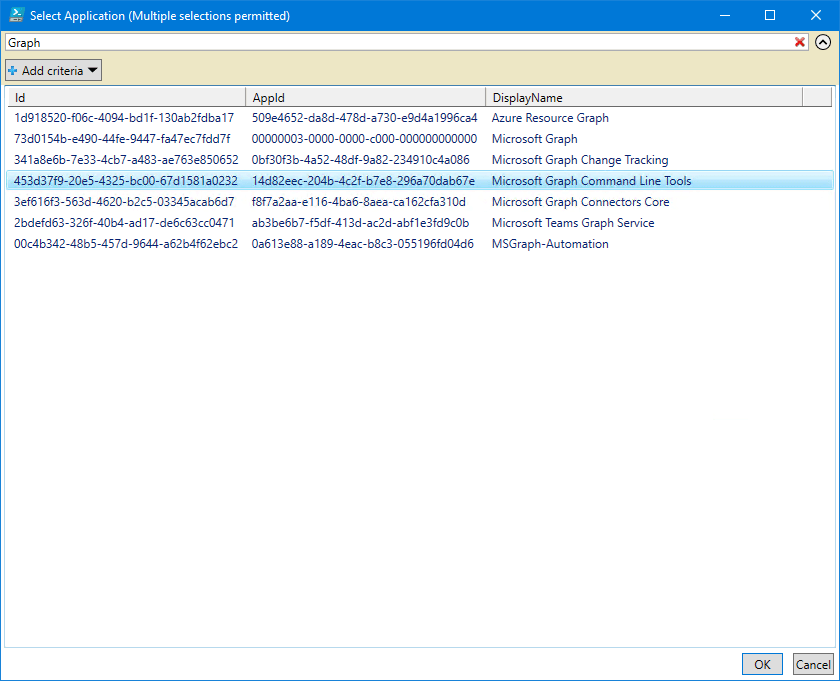
C:Scripts.Remove-AppPermissions.ps1หน้าต่างมุมมองตารางจะแสดงผลลัพธ์ในตารางแบบโต้ตอบ นี่คือแอปพลิเคชันทั้งหมดในผู้เช่า Microsoft Entra ของคุณ
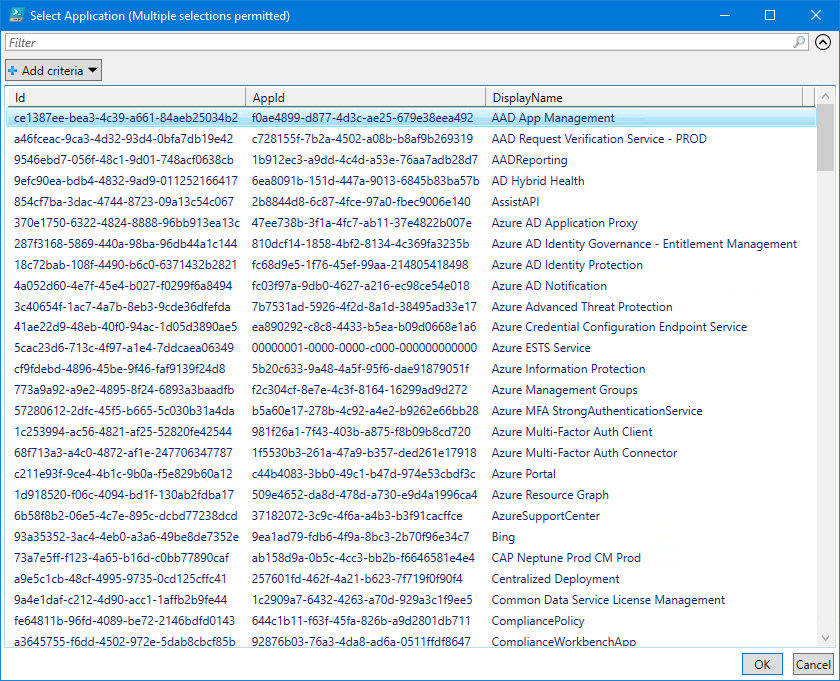
เลือกแอปพลิเคชันและคลิกตกลง.
อ่านเพิ่มเติม:
ในตัวอย่างของเรา เราจะเลือกแอปเครื่องมือบรรทัดคำสั่ง Microsoft Graph.
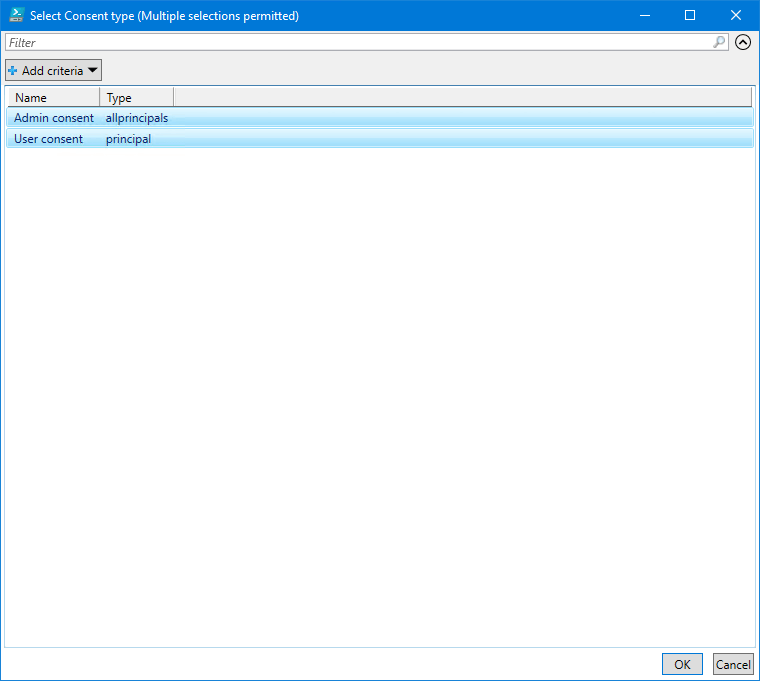
เลือกประเภทความยินยอม อนุญาตให้เลือกได้หลายรายการ
ในตัวอย่างของเรา เราจะเลือกทั้งความยินยอมของผู้ดูแลระบบและประเภทความยินยอมของผู้ใช้
เลือกผู้ใช้ที่คุณต้องการลบสิทธิ์ออกจากแอปพลิเคชันแล้วคลิกตกลง
ในตัวอย่างของเรา เราจะเลือกผู้ใช้ทั้งสองราย
บันทึก:หากผู้ใช้ได้รับความยินยอมของผู้ดูแลระบบและสิทธิ์ความยินยอมของผู้ใช้ ระบบจะแจ้งให้คุณทราบสองครั้งในขั้นตอนถัดไป คุณจึงสามารถตัดสินใจได้ว่าต้องการลบเฉพาะความยินยอมของผู้ใช้ ความยินยอมของผู้ดูแลระบบ หรือทั้งสิทธิ์ของผู้ใช้

มันจะผ่านผู้ใช้ที่ผู้ดูแลระบบยินยอมที่คุณเลือก เลือกสิทธิ์ที่จะลบ คลิกตกลง
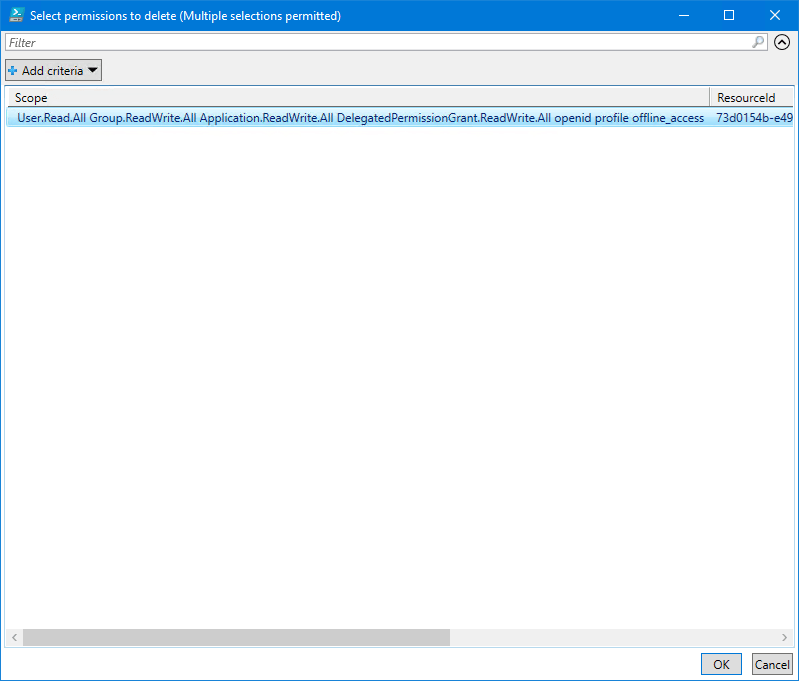
มันจะผ่านผู้ใช้ที่ผู้ใช้ยินยอมที่คุณเลือก เลือกสิทธิ์ที่จะลบ คลิกตกลง
ในตัวอย่างของเรา เรามีผู้ใช้เพียง 1 รายและเลือกสิ่งนั้น

สคริปต์ PowerShell เสร็จสิ้น และในเอาต์พุต PowerShell คุณจะเห็นผลลัพธ์
ตรวจสอบสิทธิ์ในแอปพลิเคชัน Entra
ไปที่การอนุญาตของแอปพลิเคชันและยืนยันว่าสิทธิ์ความยินยอมของผู้ดูแลระบบและสิทธิ์ที่ผู้ใช้ยินยอมนั้นถูกเพิกถอน
นี่คือลักษณะที่ผู้ดูแลระบบยินยอม:
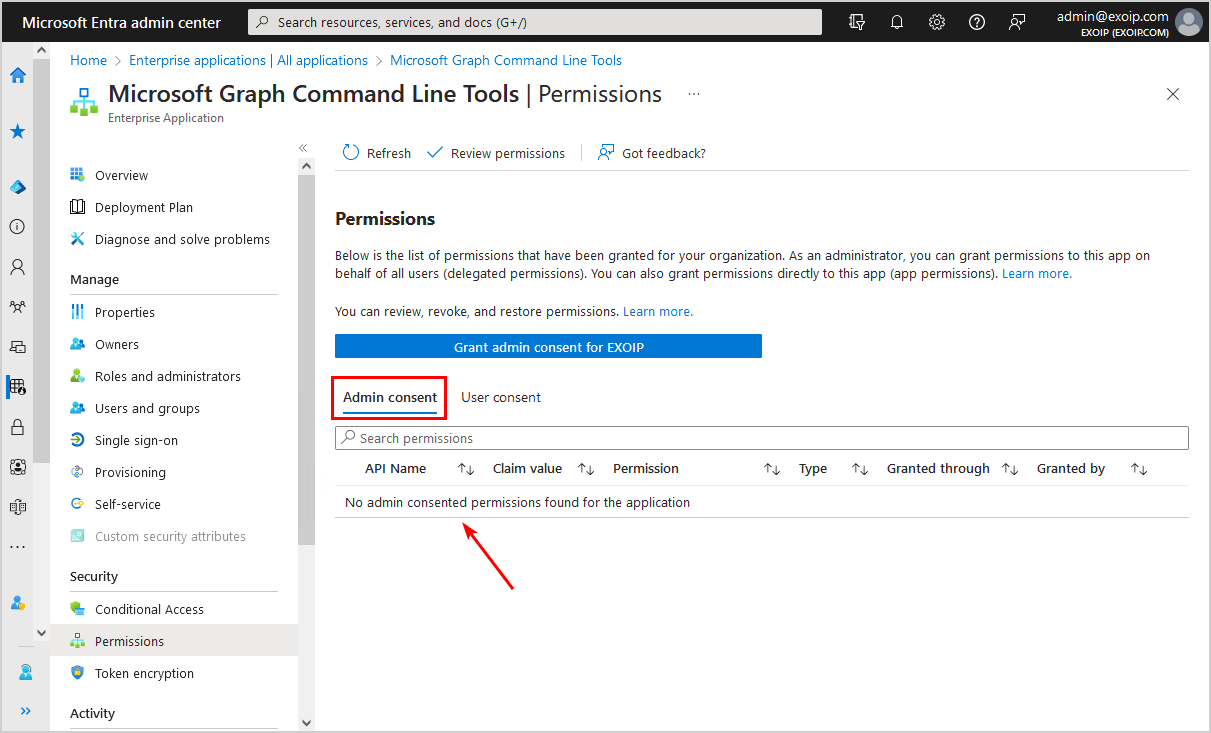
นี่คือลักษณะที่ปรากฏสำหรับการอนุญาตที่ผู้ใช้ยินยอม:
แค่นั้นแหละ!
บทสรุป
คุณได้เรียนรู้วิธีลบสิทธิ์ออกจากแอปพลิเคชันใน Microsoft Entra คุณสามารถลบสิทธิ์การยินยอมของผู้ดูแลระบบได้จากศูนย์การจัดการ Microsoft Entra เท่านั้น หากต้องการเพิกถอนทั้งสิทธิ์ของผู้ดูแลระบบและผู้ใช้ วิธีที่ดีที่สุดคือใช้สคริปต์ Remove-AppPermissions PowerShell
คุณสนุกกับบทความนี้หรือไม่? คุณอาจต้องการลบผู้ใช้ออกจาก Microsoft 365 อย่างถาวร อย่าลืมติดตามเราและแบ่งปันบทความนี้